Support this site!

Showing posts with label Google Docs. Show all posts

Tuesday, November 30, 2010

PrinterShare for mobile devices...Print right from your phone!

Have you ever been sitting in a waiting room or perhaps had a little downtime while in a restaurant or airport and wanted to do a little work on your smartphone?  Easy right?  Whip out the phone and fire up any one of a number of apps such as Google Docs (GDocs), Thinkfree Office, and more.  BUT...let’s say you wanted to print your document to share with someone else...or perhaps you have an itinerary or ticket you need to print.  Easy...if you have a computer.  Now you can use your Android (even iPhone) phone!  

PrinterShare Mobile is a mobile printing solution that allows you to print almost anywhere there is a networked printer.  This includes “shared” printers on a PC/Mac.  Print via Wi-Fi, bluetooth, bonjour, and even over the Internet!  PrinterShare features “Nearby Printing” which will allow you to scan the local network for available printers and print to them.  No need to load drivers or additional software.  You can print to Wi-Fi printers on the local area network (LAN) as well as printers that are connected to a computer and shared via Bonjour.  If you happen to be away from a LAN and still need to print something you can use Remote Printing.  For Remote Printing over the Internet, you need to either log in with your existing account or create new one right from your phone...no worries...it’s free.  Next you need to find and select the printer you want to print your document to.  The computer connected to the printer needs to have the PrinterShare software installed.  It’s a quick and easy download.  If you intend to print to your own printer, you should install the computer software first, create an account, share the printer(s) and then use the same account on your smartphone (Android or iPhone) to login.  This way you will see your shared printers automatically.  You can also look for printers shared by others.  

I’ve been using PrinterShare for a little over 3 weeks now and I’ve found it to be very handy.  I even upgraded to the premium version ($4.95) for the extra features.  There is a free version, but trust me, if you get hooked it’s worth the money to upgrade.  Recently I was out of the classroom for a day attending a funeral.  I do my sub plans on Google Docs Spreadsheet.  I had forgotten to leave my sub plans prior to leaving and thus my substitute teacher would have had a difficult time figuring out what to do.  No problem.  The moment I realized what had happened I pulled over to the side of the road and printed my sub plans to both my computer lab printer and the printer in the main office.  I then called the office and let them know.  Problem solved.  Sure...I probably could have emailed them, but printing was easier and more direct...after all, that’s what they needed in the end.  

Prior to the Thanksgiving holiday, my son made the local high school varsity basketball team (as a sophomore).  He was excited and telling Grampa all about his upcoming schedule.  While we were at my fathers house for Thanksgiving, I simply turned on printer sharing on his PC and printed the schedule right from my phone.  Handy!

Go ahead and check out PrinterShare for your Android phone or your iPhone.  Learn more here:  http://www.printeranywhere.com/mobile.sdf  or grab it from the App Store (market).  Let us know of any great uses you find for PrinterShare in the comments!  Enjoy!

Read more...

Sunday, November 28, 2010

My new Android phone

I've been a cellphone user since the earliest days of the cellular phone technology. I started with a very large bag phone from a company called Unicel and through the years I've had many phones ranging from the bag phones to flip phones and eventually some pretty small "smarter" phones with cameras and so forth. As the years have progressed, my cellphone has morphed from being strictly a communication device to use in emergencies to a device that served as my digital hub. I sent photos, texts, inquired about movie times, fetched sports scores, and occasionally made a phone call. Through all of that though, I've never had a true "smartphone". Yes, I've had Palm Pilots, PDA's, and even a Nokia N800, but never a true smartphone.

For the most part, cost was the major factor in holding out as long as I did. As the years progressed, it became apparent that I was becoming more and more dependent on my phone to help manage and organize my daily life. I was a U.S. Cellular customer for many years and had fully intended to remain one, but I was specifically waiting for them to release an Android phone. I resisted the iPhone temptation primarily because of the cost and the AT&T network. I wasn't convinced that AT&T had the coverage in our area that I required. I'm also a Linux zealot and an Open Source aficionado, thus an Android phone made perfect sense for a guy like me. U.S. Cellular released an entry level Android phone called the Acclaim which didn't really interest me...I was waiting for the announced Samsung Galaxy S phone that was coming to U.S. Cellular. The first availability date I was given was sometime in August (2010)...that became September...then October...and so on. I couldn't wait any longer so after months of playing one vendor off another, I chose to switch to Verizon Wireless. They had the phone I wanted. A Samsung Galaxy S phone called the "Fascinate". Suddenly my life changed! I know...how could a cellphone change my life? Simply put, the Samsung Fascinate put all of the things I need on a daily basis at my fingertips. No more having to find a wifi hotspot and firing up my laptop or netbook to download a file or look something up on the internet. No more trying to find the right combination of words to send to Google via SMS in order to look something up. No more posting to Facebook and Twitter via SMS...I can now do it all right from my new Android device.

What I haven't mentioned up to now is that my digital life is very much tethered to Google and its various applications. I use Gmail almost exclusively. I have hundreds of documents on Google Docs, hundreds of contacts in Google Contacts as well as Google Voice, and my life is scheduled on Google Calendar. I even have an extensive photo library on Picasa. Given that Android is a Google creation for the most part, I was happy to see how easily my digital life integrated with my new phone. My contacts, emails, appointments, and even pictures...just showed up. That's pretty cool. Now my life is easy to access...from anywhere. I like that.

Over the next few days and weeks I'll be posting more of my adventures with my Android phone. I chose the Samsung Fascinate, but that are MANY Android devices now on the market. I'll be primarily addressing Android as an OS as opposed to any specific phone. If you are a lucky owner of an Android device I hope you'll follow along and join me on my adventure...if you don't have an Android device then come along and learn more about them! See you soon!

Read more...

Tuesday, December 9, 2008

5 Google Docs Templates for Xmas!

Hey!  Google Docs is not only convenient for working online and making life easier...it can also help you with preparing for the holidays!  Google Docs templates are useful every day, but here are some that are particularly useful for this time of year!  Check 'em out! 
Top 5 Google Docs Templates for Christmas


, , , , ,

Read more...

Tuesday, December 2, 2008

Making web pages into "clickable" apps

Good day everyone!  Today I'm going to show you how you can make any web page into a quickly accessed application on your desktop, dock, or other launch panel.

Ok...let's get on with it!  Ooh!  Is that a rainbow I see?


Actually no.  Yes...it's Prism...not the triangular glass thingy, but rather, the good folks from Mozilla have created an excellent project called Prism that allows users to create "mini-browsers" specifically set up for individual web pages. 

From the Mozilla wiki page:

Prism is a simple XULRunner based browser that hosts web applications
without the normal web browser user interface. Prism is based on a
concept called Site Specific Browsers (SSB). An SSB is an application
with an embedded browser designed to work exclusively with a single web
application. It doesn’t have the menus, toolbars and accoutrements of a
normal web browser. Some people have called it a "distraction free browser"
because none of the typical browser chrome is used. An SSB also has a
tighter integration with the OS and desktop than a typical web
application running through a web browser.

Ok...wonderful.  So what?  How does this help me?

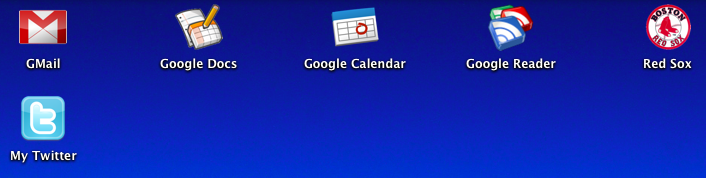
Think of it this way.  Perhaps you use GMail as your primary email or even Google Calendar?  How about Playlist.com and the standalone music player?  Prism and the Firefox add-on Prism for Firefox make it easy to "isolate" these web sites as "apps" so you can quickly and easily access them.  In the following screenshot you can see how I've actually made several "apps" on my desktop, each of which use Prism to launch a specific web site for quick and easy access.  (yes...I'm a die hard Red Sox fan too)


Pretty cool!  Ok...how do I do this?  Go easy on me...


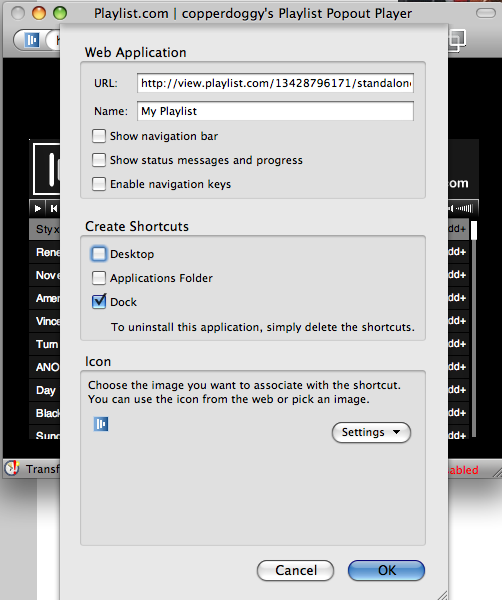
Sure!  It's actually pretty easy.  The easiest method is to use the Prism for Firefox extension...sometimes also referred to as Prism refractor for Firefox.  Use the link below to go to the installation link.  Install just like any other extension and then restart Firefox.  Once you have restarted, you should see a new menu item located under "Tools" that says "Convert Website to Application".  Browse to the site you wish to make into an "app".  In my example, I'm going to browse to www.playlist.com and go to my playlist.  I'll launch the standalone Flash Player.  Once the Flash player is open, I'll click "Tools" > "Convert Website to Application".  The next shot shows what that looks like:


You can choose to add icons to your desktop, dock, or applications folder.  NOTE: This example was created using OS X...other platforms may look a little different and have a less options.  (the Linux version only offers the "desktop" option)

Dude!  That's awesome!  Thanks for the tip!  So...what does it look like in the end?


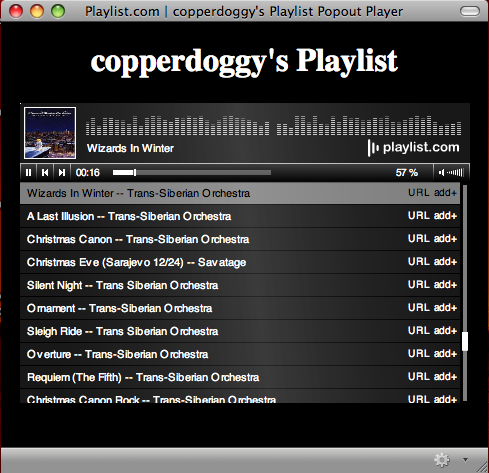
You're welcome!  Here's the shot of my playlist using Prism in all its glory!


Notice the Holiday tunes!  Enjoy the holiday season and let me know if and how you were able to use this tip in the comments!


Prism for Firefox :: Firefox Add-ons
Technorati Tags: , , , , ,

Read more...

Monday, November 24, 2008

Anytime, anywhere...grinding Gears!

It's been a long day, but here I sit at the local salon while watching my teenage son get a haircut (I'm next). Even though there's no wireless here, I can still get on my computer and type. Granted, there are a bazillion word processing programs I can use, but I'd rather use what I'm used to...Google Docs. Now, there's a bit of a quandary. Online apps, offline computer. In many cases, no amount of magic voodo, divine breakdancing, or tin foil will help at all. In fact, I can't even get online using my phone in here. Believe it or not, I can step outside and SEE the cell phone tower, but in this house of hair dryers, scissors, and chemicals that can make even the limpest noodle stand straight up, I can't get online. So, what now? Obviously I've figured it out or you wouldn't be reading this.

Huh? Offline? Online? Which is it? Are you feeling ok?

Actually I feel fine. Ok...maybe I'm getting a little woozy sitting here next to the rack of assorted boutique hair care products. So, I'm offline and writing a blog post using Google Docs. I know, I know! I can hear you already, "Umm, dude? Google Docs is on the Internet. You need to be online to use it." Aha! You're right! *kinda'* Ok, not really...

Get into Gears

The wonderful folks at Google have done it again! They've defied the very laws on online physics! Working with online apps... *gasp*...offline. Egads! What will they think of next? Perhaps someone will invent a small portable music device that holds thousands of songs and allows you to buy those songs...online! Ok, wishful thinking. Seriously though, Google has really come through this time with Gears. Gears allows you to take many apps that might normally work only online and allow you to use them offline. Gears was initially released in May of 2007 and has since become quite a popular application for Web 2.0 afficianados. Gears works with many online applications such as YouTube, Docs, Reader, Picasa for mobile), MySpace (Mail Search), Zoho Writer and Mail, Remember the Milk, and Buxfer. Wordpress recently added support for Gears, to speed up the administrative interface and reduce server hits.

Ok...great...so where's the clutch?

Unlike driving a stick shift, installing Gears is actually very simple. Simply go to the Gears site (http://gears.google.com) and click the link. If you're using Firefox it will install as an extension (it doesn't get much simpler than that) simply click "Install".

Whee! Offline computing! Great! Now how soon before that little music player thingy comes along?

Get Gears. Sync up your documents and you'll be editing and creating regardless of your internet connection. No more switching to other word processing programs just because you're offline. Let us know all about the awesome ways you've found to use Gears in the comments...

Read more...

Saturday, November 22, 2008

What are your fave Firefox extensions?

Read more...

Friday, November 21, 2008

My Gmail themes have arrived! Whee!


For a while now I've been using the GMail Redesigned firefox extension to dress up my GMail...and it has worked great. BUT I was getting kinda' tired of it. Today the Google gods blessed me with the new "Themes" tab in my GMail settings. YAY! I now can choose a different theme for my GMail! I know, big deal...but if you use GMail several times a day...having something different to look at is kinda' nice. Just like we all need a change of scenery sometimes, the same can be true in our online scenery as well. Check out your GMail settings...hopefully the Google gods have blessed you as well, if not, hang on...themes will arrive for you shortly.

Read more...

Wednesday, November 19, 2008

Convert PDF's to Word documents in a jiffy!

Have you ever had a colleague send you a document as a PDF that you really needed to edit? (funny story...that happened to me just yesterday) Have you ever deleted a document master AFTER you saved it as a PDF? Well...there's a online tool that just might help you! Simply click the link below...upload your PDF file...and then download your .doc file! It's that easy! Now...granted...you can't expect a lot from any tool that has to jump through a lot of hoops to change formats for you, but...hey...it's free and a LOT better than nothing. Oh....HOLD ON! Wait a minute! I just converted a 272 page HP Service Manual andit came out "flawless". WOW! You gotta' check this out! Share your impressions in the comments...

Convert pdf to word - Convert pdf to doc - Convert online pdf to word

Read more...

Saturday, November 15, 2008

You've got a new computer! (ok...now what?)

Buying a new computer can be quite an experience! What do I need? What should I have for storage? Processing power? Software? Protection?

So...now that you have your computer...what's the best way to make it run smoothly without getting caught up in all the "special offers" or "additional upsells". Most manufacturers will "attach" trial versions or "click here" upsells to your computer software (especially if the computer comes pre-loaded with Windows) The most common forms of "trialware" include anti-virus software and printer or camera software. In most cases, these are NOT the best way for you to go...as they often slow down your computer or pressure you into buying things you don't need. Let's look at a better way to get your computer ready...

Read more here...

Read more...

Be a nuggethead...subscribe!

You! Yes you! Join us now!

  © Blogger template Blogger Theme by Ourblogtemplates.com 2008

Back to TOP